Fronius job Editor
NOTE: This topic is only applicable to the following Robotics OLP products:
- Visual Components Premium OLP
- Visual Components Professional OLP
- Visual Components Robotics OLP
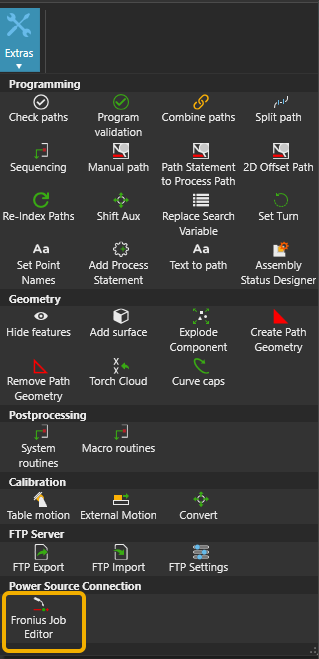
This tool enables direct connection to Fronius power sources for reading and editing welding job data. You can find the tool under Extras > Power Source Connection.
Connect to your Fronius power source
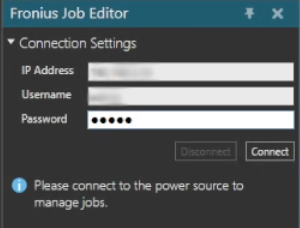
To connect to your Fronius power source, enter the IP Address, Username and Password for the power source and click Connect.
View jobs and parameters
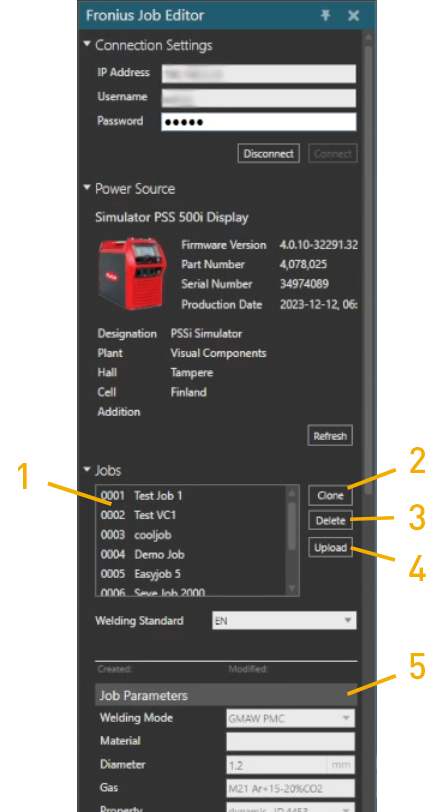
After connecting you can select a job from the Jobs list (1) and view its parameters from the Job Parameters panel (5).
Create a modified job
To modify a job, select an existing job from the Jobs list. Click Clone (2) to create a new job based on the job you selected from the Jobs list. After that, you can rename it and edit its parameters. If you cloned a job by mistake, you can delete it by clicking Delete (3).
Note: You can only delete jobs before they are uploaded to the power source. After a job is uploaded, you cannot delete it.
Upload the job
After making modifications to your job, click Upload (4) to send the job to the power source.